
How to Use Your Phone’s Hotspot
Table of Contents
You’re sitting in your favorite coffee shop, laptop open, ready to tackle that urgent work presentation. The barista sheepishly announces their Wi-Fi is down. Again. The person beside you groans, packs up their things, and leaves. But you don’t move a muscle because you know a secret that turns your smartphone into an internet superhero, cape and all.
That secret? Your phone’s built-in hotspot feature. It’s like carrying your own personal coffee shop Wi-Fi in your pocket, minus the espresso machine. Let’s unlock that power and learn how to use it effectively.
What Is a Phone Hotspot and How Does It Work?
Your smartphone’s hotspot capability harnesses its cellular data connection, broadcasting it as a Wi-Fi signal that other devices can use to connect to the internet. This technology works similarly to your home Wi-Fi router, but instead of distributing a hardwired internet connection, it shares your phone’s mobile data. This means you can work on your laptop, stream movies on your tablet, or browse the web on any Wi-Fi-enabled device, even when traditional internet access isn’t available [1].
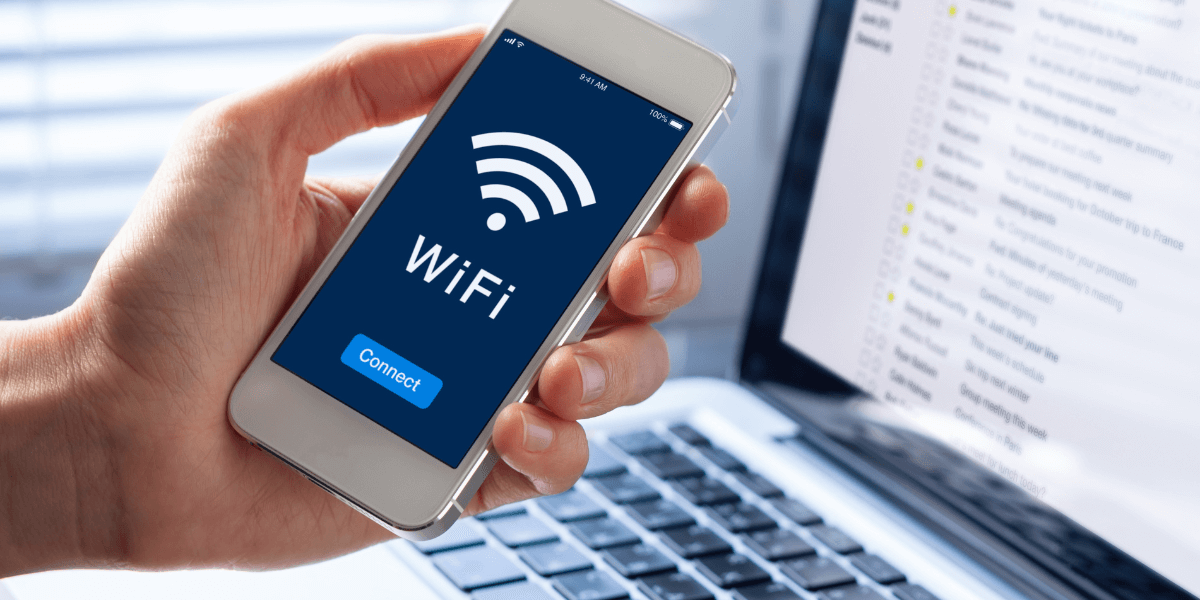
Your pocket Wi-Fi solution
Getting Started with Your Mobile Hotspot
Before setting up a hotspot, you must confirm that your cellular plan includes this feature. Most modern phone plans offer hotspot capabilities, but the amount of high-speed data available for hotspot use often differs from your regular data allowance. Contact your carrier to understand your specific plan’s limitations and whether you need to add hotspot functionality to your service.
Setting Up Your iPhone as a Hotspot
Creating a hotspot on your iPhone requires just a few simple steps.
- Navigate to your phone’s settings and look for the Personal Hotspot option. On newer iOS versions, you’ll find this directly in the main settings menu, while some older versions tuck it under the Cellular menu [2].
- Once you’ve located it, enable the “Allow Others to Join" toggle, and your phone will create a private Wi-Fi network.
Your iPhone automatically generates a password for your hotspot, but you can change it to something more memorable. You can also modify your hotspot’s name—by default, it displays as “[Your Name]’s iPhone," which might not be ideal for privacy [4]. You can change this through the General settings under the About section.
Creating a Hotspot on Android Devices
Android phones offer similar hotspot functionality with slightly different setup steps.
- You’ll start in your phone’s settings menu, where you’ll find the hotspot option under Network & Internet or Connections, depending on your phone model [3].
- After enabling the Mobile Hotspot feature, you can customize your network name and password for added security.
Android devices provide additional customization options, including choosing between 2.4GHz and 5GHz frequency bands. While 5GHz offers faster speeds, 2.4GHz provides better range and wall penetration. Choose based on your specific needs and environment.
Keep it secure
Connecting Your Devices Securely
When sharing your phone’s internet connection, you have several options. Wi-Fi remains the most popular choice, offering a good balance of speed and convenience. However, USB tethering provides a more stable connection and charges your phone simultaneously, though it limits you to connecting a single device. Bluetooth tethering offers another alternative: less battery power used but slower speeds.
Security should be a top priority when using your phone as a hotspot. Public Wi-Fi networks are notorious for their vulnerability to cyber attacks, but your hotspot can provide a much safer connection. Create a strong password using a mix of numbers, letters, and symbols, and change it periodically. Monitor connected devices regularly and remove any you don’t recognize.
Signal strength is key
Maximizing Your Hotspot Performance
Your hotspot’s performance depends mainly on cellular signal strength and data plan limitations. Position your phone in an elevated location away from metal objects and other sources of interference. Remember that walls and distance can affect signal strength, so maintain proximity between your phone and connected devices.
Battery life presents another significant consideration. Running a hotspot demands considerable power, so keep your phone plugged in during extended use if possible. If you frequently use your phone as a hotspot, consider investing in a portable battery pack to extend your connection time [5].
Hotspots quickly consume data allowances
Managing Data Usage and Costs
Using your phone as a hotspot can quickly consume your monthly data allowance. Most carriers implement separate data caps for hotspot usage, often at lower thresholds than your regular data plan. Monitor your usage through your carrier’s app or phone settings to avoid unexpected charges. Some activities, like video streaming and large file downloads, can rapidly deplete your hotspot data allowance.
Troubleshooting Common Issues
Even with a perfect setup, you might encounter occasional connection issues. Slow speeds often result from poor cellular coverage or network congestion. If you experience problems, try moving to a different location or resetting your hotspot. Regular phone software updates can also improve hotspot performance and stability.
Connection drops might occur due to timeout settings designed to preserve battery life. Adjust these settings based on your needs, but remember that longer connection times mean faster battery drain. If problems persist, resetting your network settings often resolves stubborn connectivity issues.
5G is changing the game
The Future of Mobile Connectivity
As 5G networks expand, phone hotspots will become increasingly viable alternatives to traditional internet connections. While they may not replace home broadband entirely, they offer an invaluable backup option and mobility solution. Understanding how to use your phone’s hotspot capability effectively ensures you’ll always be connected to the internet.
Interested in upgrading your phone? Find your area’s best providers and plans by entering your zipcode here.
Sources
[1] Aarp.org. “How to Use Your Smartphone as a Wi-Fi Hot Spot.”
[2] Support.apple.com. “How to Set Up a Personal Hotspot on Your iPhone or iPad.”
[3] Makeuseof.com. “Using Your Smartphone as a Hotspot? Here’s How to Secure It.”
[4] Security.org. “Are Mobile Hotspots Safe? The Answer May Surprise You.”
[5] Pcmag.com. “How to Turn Your Phone into a Wi-Fi Hotspot.”